

Overview
The Archefusion API uses API keys to authenticate requests. Every request must include your API key in theAuthorization header using the Bearer format.
How to get your test API keys
Step 1: Log in to your merchant dashboard on Archefusion. Step 2: Add test API credentials to at least one of your configured payment gateways. Step 3: Ensure at least one of your configured payment gateways has been activated. To activate a gateway, toggle its status from inactive to active on the payment gateway configuration page.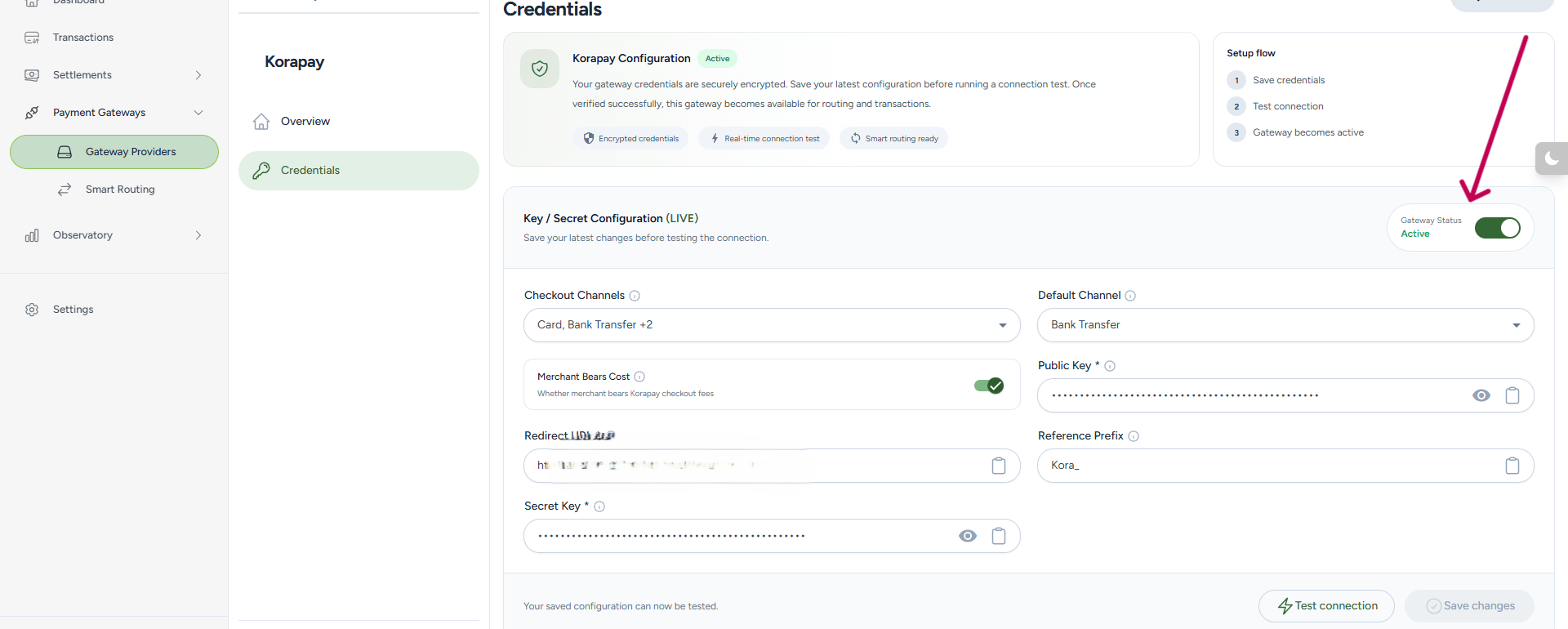
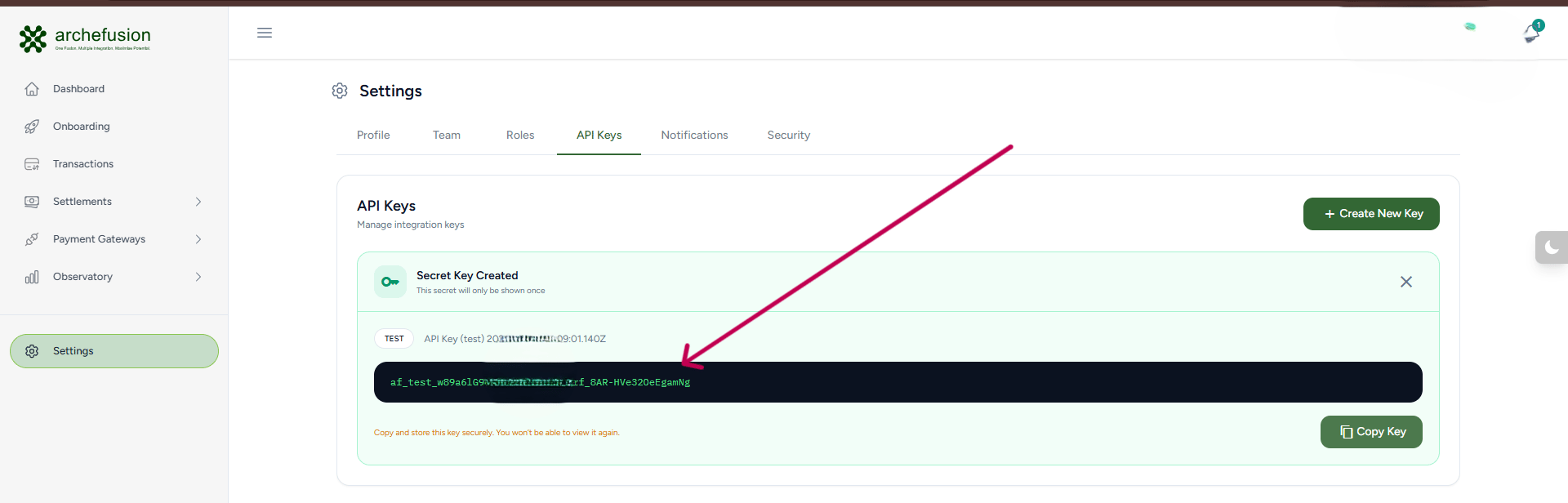
How to get your live API keys
Step 1: Log in to your merchant dashboard on Archefusion. Step 2: Add live API credentials to at least one of your configured payment gateways. Step 3: Ensure at least one of your configured payment gateways has been activated. To activate a gateway, toggle its status from inactive to active on the payment gateway configuration page.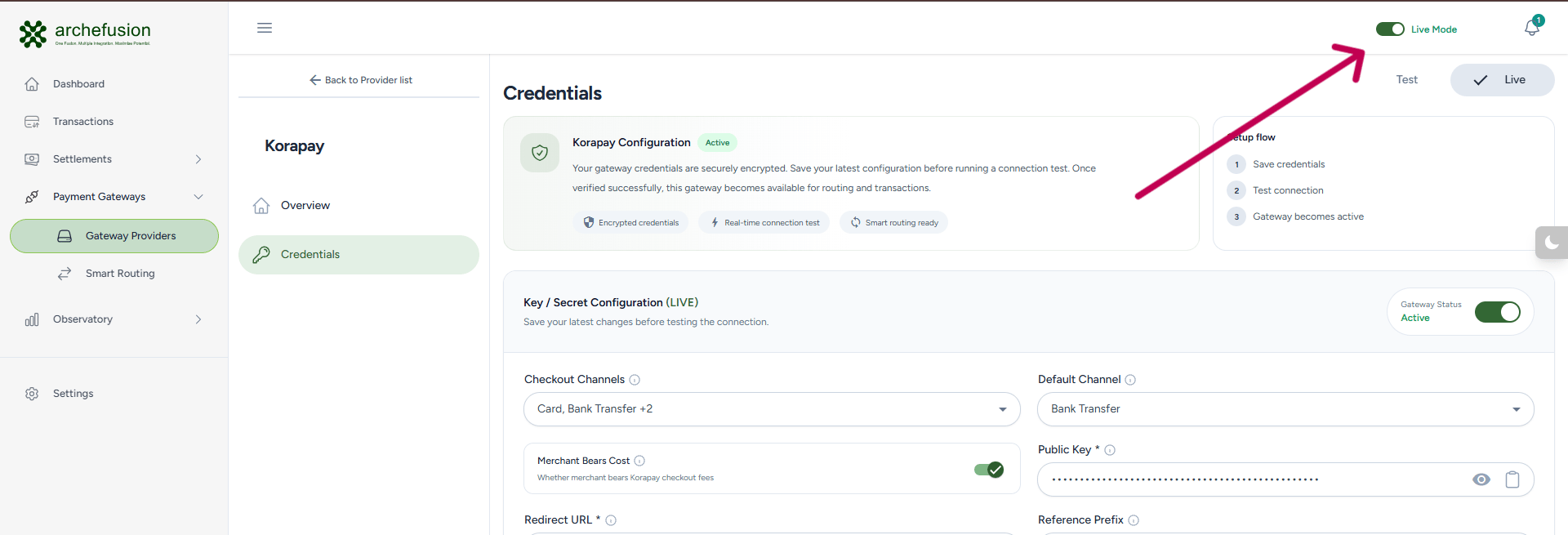
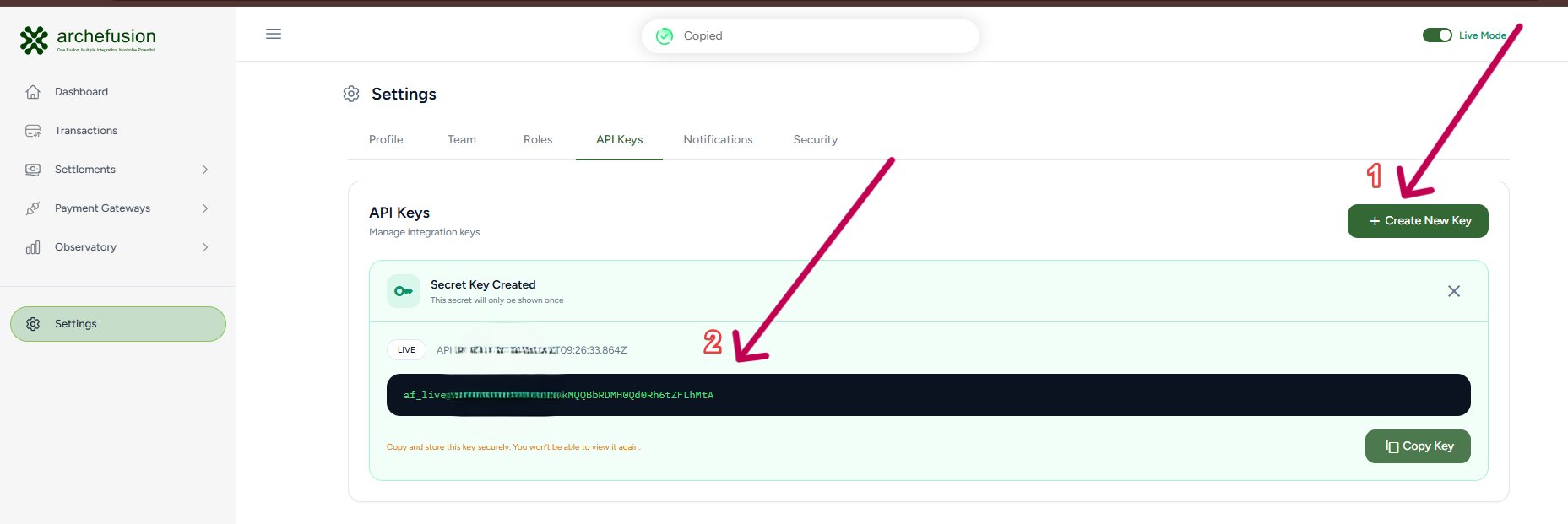
Keep your API keys secure
- API requests made without a valid API key will return a
401 Unauthorizederror. - Store your keys securely using environment variables or secret managers; never hardcode them
- Never share your keys in public repositories or use them in client-side code.
- Rotate your API key immediately if you suspect it has been compromised.